







Want to show off something cool on your screen? Need to make a tutorial or record a glitch? If you’re using Google Chrome, you’re in luck! There are super easy ways to screen record your browser using both built-in tools and fun little extensions. Let’s make screen recording your new favorite trick!
TL;DR (Too Long; Didn’t Read)
All Heading
Screen recording in Chrome is super simple. You can use Chrome extensions like Loom or Screencastify, or go with built-in tools like Windows Game Bar or macOS Screenshot. Extensions are great for quick videos, while built-in tools don’t need extra downloads. Either way, you’ll be recording like a pro in minutes!
Why Screen Record in Chrome?
Before we dive into the “how,” let’s look at the “why.”
- Make online tutorials: Show someone how to do something step-by-step.
- Capture bugs or errors: Record a weird website glitch to report it later.
- Save memories: Capture an online game moment or a funny video call.
- Work presentations: Show off your work or feedback on a site.
Basically, if it’s on the screen, you can record it!
Option 1: Use Chrome Extensions
This is the easiest way to start screen recording on Chrome. Extensions are like tiny apps for your browser. They live right inside Chrome and add extra superpowers.
Here are some popular and easy-to-use screen recording extensions:
1. Loom
Loom is one of the most popular screen recording tools for Chrome.
- Free for short videos
- Easy-to-use interface
- Can record your screen and webcam at the same time
How to Use Loom:
- Go to the Chrome Web Store.
- Search for “Loom.”
- Click Add to Chrome and install it.
- Click the Loom icon in your browser toolbar.
- Choose what to record: screen, tab, or camera.
- Hit Start Recording. Boom – you’re live!
When you’re done, Loom gives you a link to share. Super smooth!
Image not found in postmeta
2. Screencastify
This one’s super popular in classrooms and for casual users.
- User-friendly – especially for beginners
- Lets you draw on the screen while recording
- Autosaves videos to Google Drive
How to Use Screencastify:
- Head to the Chrome Web Store.
- Search for “Screencastify.”
- Click Add to Chrome and open the extension.
- Sign in with Google.
- Pick your recording area (browser tab, entire desktop, or webcam).
- Click Record.
Done? Click the stop button, edit if you want, and share with a click!
Option 2: Use Built-In Tools (No Extension Needed)
Don’t want to install anything extra? Your computer already has ways to screen record! Here are built-in tools based on your device.
For Windows: Game Bar
Windows 10 and 11 come with Xbox Game Bar that you can use to record your Chrome screen.
How to Use It:
- Open Chrome and go to the tab you want to record.
- Press Win + G on your keyboard.
- Game Bar will pop up with options. Click the Record button.
- When done, hit Stop Recording.
Your video will be saved in the Videos > Captures folder on your PC.
For macOS: Screenshot Tool
Macs running macOS Mojave or later have a built-in screenshot and screen recording tool.
How to Use It:
- Open Chrome and go to what you want to record.
- Press Command + Shift + 5.
- Choose the screen area you want: full screen or a selected window.
- Click Record and start doing your thing!
- To stop, click the stop button in the menu bar at the top of your screen.
Video will be saved on your desktop automatically. Easy peasy!
Image not found in postmeta
Web-Based Tools for Quick Recording
Want to record without installing anything? Try web-based apps!
Best Option: ScreenApp
ScreenApp.io lets you record your Chrome screen online. No downloads!
- Just open the site and press record
- Choose browser tab, entire screen, or webcam
- Save or download your video directly
Other options include:
- Apowersoft Online Recorder
- Panopto
- VEED.IO
Most of these work right in Chrome. Just click, record, and go!
Tips to Make Your Recordings Shine
Now your recordings are looking good, but how do you make them great? Here’s how:
- Close extra tabs – They slow your computer down.
- Use a microphone – Audio makes a big difference.
- Plan your recording – Jot down a few notes first.
- Practice once – Especially if it’s an important vid.
- Edit after – Some tools let you trim or add text.
Need to show clicks or highlights? Extensions like Loom and Screencastify have cursor effects that help!
What’s the Best Option for You?
Still not sure what to pick? Let’s keep it simple:
- Need fast, no-fuss recording? Use web-based tools like ScreenApp.
- Want to record often with cool features? Try extensions like Loom.
- Low on storage or hate installing things? Use built-in tools on your PC or Mac.
The best choice depends on what you need. Try a few, and stick with your favorite!
Final Thoughts
Screen recording in Chrome doesn’t require fancy software or a PhD in tech. Whether you’re showing off skills, reporting bugs, or making tutorials, it’s all possible with just a few clicks.
So go ahead – press record and share your screen magic with the world!
Image not found in postmeta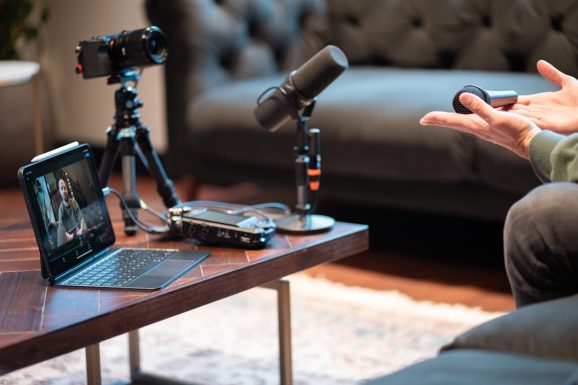





Recent Comments