







There are few things more frustrating for a streamer than thanking a new subscriber or donor… only to realize your alert never showed up on stream. Whether you’re live on Twitch, YouTube, or Facebook, StreamElements alerts are a crucial part of audience engagement. When they stop working, it can feel like your stream is running in silent mode.
TLDR: If your StreamElements alerts aren’t working, the issue is usually related to browser source settings, cache problems, muted permissions, or incorrect alert box links. Start by checking that your browser source is active and properly linked, refresh the cache, verify audio monitoring, and ensure recent events are enabled in StreamElements. Most alert issues can be fixed in just a few minutes with the right troubleshooting steps.
In this guide, we’ll walk through why StreamElements alerts stop working and exactly how to fix them, step by step.
Why StreamElements Alerts Stop Working
All Heading
Before jumping into solutions, it helps to understand what might be going wrong. Alerts typically fail for one of these reasons:
- Incorrect browser source URL
- Muted or hidden browser source in OBS/Streamlabs
- Corrupted cache
- Audio monitoring not enabled
- Alert variations disabled
- Platform connection issues
The good news? Most of these are quick fixes.
1. Check Your Browser Source in OBS or Streamlabs
Your StreamElements alerts appear in your stream software through a browser source. If this source is broken, missing, or inactive, alerts won’t show.
How to Fix It:
- Open OBS or Streamlabs.
- Locate your Alert Box browser source.
- Right-click → Select Properties.
- Copy a fresh Alert Box URL from StreamElements (Dashboard → Streaming Tools → Alert Box).
- Paste the updated URL into your browser source.
- Click OK and test the alert.
Pro Tip: If nothing seems wrong, try deleting the browser source entirely and re-adding it. This often fixes hidden configuration issues.
2. Refresh the Browser Source Cache
Sometimes the issue isn’t the link — it’s the cache stored in OBS.
When cache files get corrupted, alerts may stop playing animations or sounds.
How to Clear Cache in OBS:
- Right-click your Alert Box source
- Select Properties
- Click Refresh Cache of Current Page
If that doesn’t work:
- Check the box for Shutdown source when not visible
- Uncheck and recheck Refresh browser when scene becomes active
These small toggles often kick-start stalled browser elements.
3. Make Sure the Correct Scene Is Active
This may sound obvious, but many streamers troubleshoot for 20 minutes before realizing they’re testing alerts on a scene that doesn’t contain the alert box source.
Double-check:
- The alert source is added to the active scene
- The source isn’t hidden (eye icon enabled)
- It’s layered above other visual elements
If your alert is under a full-screen overlay, you won’t see it even if it’s working perfectly.
4. Check Alert Volume and Audio Monitoring
If your animation plays but you can’t hear anything, the issue is likely audio monitoring.
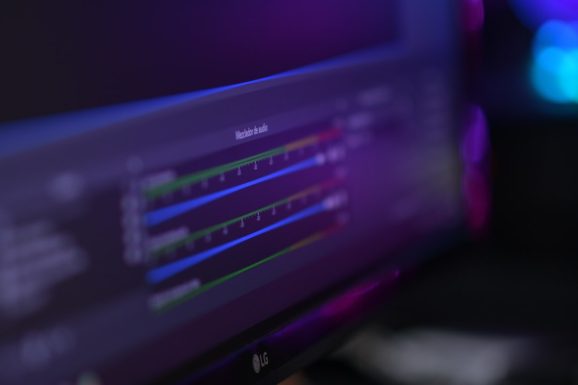
Steps to Fix Alert Audio:
- Open OBS.
- Go to Edit → Advanced Audio Properties.
- Find your Alert Box source.
- Under Audio Monitoring, select:
- Monitor and Output (if you want to hear it and stream hears it)
- Monitor Off (if only stream should hear it)
Also check:
- Your desktop audio isn’t muted
- The alert volume slider in StreamElements isn’t set to 0%
- Your headset isn’t overriding monitoring settings
5. Test Alerts Directly in StreamElements
Before assuming your stream setup is broken, test alerts inside the dashboard itself.
Go to:
StreamElements Dashboard → Alert Box → Emulate
Trigger a test subscriber, donation, or follow alert. If it doesn’t work here, the issue is within StreamElements settings.
Common causes inside the dashboard:
- Alert variations disabled
- Animation duration set to 0
- Opacity accidentally set to 0%
- Custom CSS hiding the alert
If you’re using custom code, temporarily disable it to see whether it’s interfering.
6. Reconnect Your Streaming Platform
If your alerts don’t trigger for real events (but test alerts work), your platform connection may be broken.
Image not found in postmetaHow to Reconnect:
- Go to StreamElements → Dashboard
- Open Account Settings
- Disconnect your platform (Twitch/YouTube/Facebook)
- Reconnect and authorize again
This refreshes API permissions and often resolves real-time event problems.
Important: If you recently changed your Twitch username, you must reconnect your account.
7. Check Alert Variations and Minimum Thresholds
Some streamers accidentally disable alerts by setting filters too high.
For example:
- Minimum donation set to $5 (but viewer donated $1)
- Only resubs enabled, not new subs
- Follower alerts toggled off
Open each alert type and verify:
- Enabled toggle is ON
- Minimum amount is correct
- No unnecessary conditions are blocking it
8. Disable Conflicting Alert Systems
Running multiple alert services can cause conflicts.
If you’re using:
- Streamlabs alerts
- Twitch built-in alerts
- Third-party overlays
They may compete for browser source resources or create duplicate issues.
Solution: Stick to one alert provider and remove unused browser sources.
9. Update OBS and Clear System Issues
Outdated software can break browser-based elements.
Make sure:
- OBS is updated to the latest version
- Your graphics drivers are current
- Your firewall isn’t blocking OBS browser connections
If you’re still stuck, try:
- Restarting OBS
- Restarting your PC
- Running OBS as Administrator
It sounds basic — but it works more often than you’d expect.
10. Advanced Fix: Create a New Scene Collection
If nothing else works, your scene collection may be corrupted.
Try this:
- Go to Scene Collection → New
- Create a clean setup
- Add a new browser source with fresh Alert Box URL
- Test alerts
If alerts work in the new setup, the issue is isolated to your old scene configuration.
Quick Troubleshooting Checklist
Run through this in order:
- ✅ Browser source URL correct
- ✅ Alert source visible in active scene
- ✅ Cache refreshed
- ✅ Alert volume enabled
- ✅ Test alert works in dashboard
- ✅ Platform properly connected
- ✅ No conflicting alert services
- ✅ OBS updated
In most cases, the issue is solved by step 2 or 3.
When to Contact StreamElements Support
If you’ve tried everything and alerts still won’t work, it may be time to contact support.
Reach out if:
- Dashboard emulation doesn’t work
- Platform events are not registering
- Your account shows API errors
Provide screenshots and describe what you’ve already tried — this speeds up the process significantly.
Final Thoughts
StreamElements alerts are one of the most powerful engagement tools a streamer has. They celebrate your viewers, create energy, and make your stream feel interactive and rewarding.
When they stop working, it can feel disastrous — but the fix is usually simple. Whether it’s a cached browser source, muted audio monitoring, or a disconnected Twitch account, most issues are solvable in under 10 minutes.
The key is to troubleshoot methodically:
Check the link. Check visibility. Check audio. Test internally. Reconnect if needed.
Once your alerts are functioning again, you can get back to doing what matters most: creating great content and building your community — with every follow, sub, and donation properly celebrated on screen.



Recent Comments