







Creating a fillable PDF might sound technical. It is not. In fact, it is one of the most useful and simple digital skills you can learn. Whether you need forms for work, school, clients, or event registrations, a fillable PDF saves time and looks professional. And the best part? You do not need to be a designer or a tech expert to make one.
TLDR: A fillable PDF is a document that lets people type directly into form fields. You can create one using tools like Adobe Acrobat, Microsoft Word, Google Docs, or free online editors. The process usually involves adding text fields, checkboxes, and drop-down menus. Save, test, and share. That’s it!
Let’s break it down. Step by step. Simple and fun.
What Is a Fillable PDF?
All Heading
A fillable PDF is a digital document with editable fields. Instead of printing and writing by hand, users type directly into the file.
Common fillable elements include:
- Text boxes (for names, addresses, answers)
- Checkboxes (for yes/no or multiple choice)
- Radio buttons (select one option)
- Drop-down menus (choose from a list)
- Digital signature fields
They are perfect for:
- Job applications
- Client intake forms
- Surveys
- Contracts
- Event registrations
- School forms
Think of it as turning a regular document into an interactive experience.
Step 1: Start With a Clean Document
Before adding form fields, you need a base document.
You can create it in:
- Microsoft Word
- Google Docs
- Canva
- Any design or document tool
Design your form clearly. Leave space where users will enter information. Keep it simple. Avoid clutter.
Tips for layout:
- Use clear headings
- Group related questions
- Leave enough white space
- Use consistent fonts
When ready, export or save the file as a PDF.
Step 2: Choose Your Tool
Now the magic begins. You need a tool that allows you to add interactive form fields.
Here are popular options:
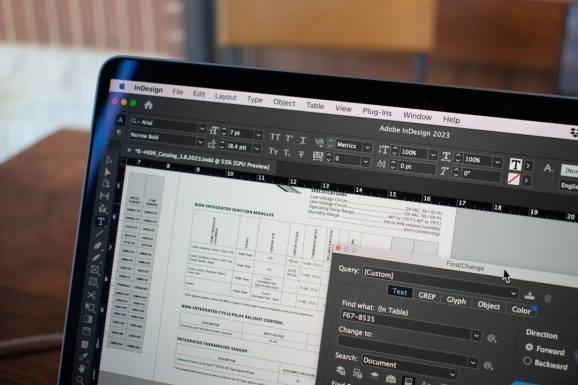
1. Adobe Acrobat
- Industry standard
- Very powerful
- Paid tool
- Best for complex forms
2. Microsoft Word
- Has built-in form tools
- Simple to use
- Good for basic forms
- Requires saving as PDF after
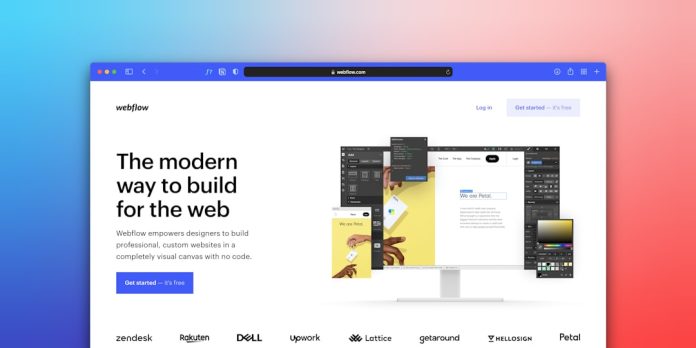
3. Google Docs + Add-ons
- Free
- Cloud-based
- Limited advanced features
4. Online PDF Editors
- No installation needed
- Many free options
- Easy drag-and-drop interface
- May have file size limits
Quick Comparison Chart
| Tool | Cost | Ease of Use | Best For | Advanced Features |
|---|---|---|---|---|
| Adobe Acrobat | Paid | Medium | Professional forms | Yes |
| Microsoft Word | Paid (often included) | Easy | Basic internal forms | Limited |
| Google Docs | Free | Very Easy | Simple forms | No |
| Online PDF Editors | Free & Paid | Very Easy | Quick projects | Varies |
Step 3: Add Fillable Fields
This is where your document becomes interactive.
In most tools, the process looks like this:
- Open your PDF in the editor.
- Select “Prepare Form” or “Add Form Fields.”
- Click where you want to insert a field.
- Choose the field type.
- Resize and position it.
Common field types explained:
- Text Field: For short or long written responses.
- Checkbox: Allows multiple selections.
- Radio Button: Limits choice to one option.
- Drop-down List: Saves space and keeps things tidy.
- Date Field: Ensures correct date format.
Pro Tip: Name your fields clearly. For example, use “FirstName” instead of “Text1.” It helps when collecting data.
Step 4: Customize Field Settings
Do not skip this step. It makes your form smarter.
You can configure:
- Required fields (so users cannot skip important info)
- Character limits
- Default values
- Formatting rules (numbers only, email format, etc.)
- Tooltip help text
This prevents mistakes. And reduces follow-up emails.
Example:
- Set phone numbers to numbers only.
- Mark email as required.
- Add instructions like “Please enter your full legal name.”
Small tweaks. Big difference.
Step 5: Add a Digital Signature Field (Optional but Powerful)
If your document needs approval or agreement, add a signature field.
This allows users to:
- Draw their signature
- Type their name as a signature
- Upload a saved signature
It makes contracts faster. No printing needed.

Always test the signature field before sending it out.
Step 6: Test Your Form
This step is crucial. Never skip testing.
Here’s what to check:
- Can you click into every field?
- Do required fields stop submission?
- Do checkboxes work correctly?
- Do drop-down menus display properly?
- Does formatting look clean?
Pretend you are the user. Fill everything out once.
If something feels confusing, fix it.
Now you are ready.
Save the document as a standard PDF. Make sure it remains fillable.
You can share it:
- Via email
- Through a website download
- Using a cloud storage link
- Inside a client portal
If collecting many responses, create a system to organize incoming files. Use folders. Name files clearly.
Bonus Tips to Make Your Fillable PDF Look Professional
Want it to look polished? Here are easy upgrades:
- Use brand colors subtly
- Add a logo at the top
- Align fields perfectly
- Keep spacing consistent
- Avoid tiny fonts
Professional does not mean complicated.
In fact, simple design often works best.
Common Mistakes to Avoid
Even simple forms can go wrong. Watch out for these:
- Too many required fields
- Overcrowded layout
- Unclear instructions
- Forgetting to test
- Not saving as fillable PDF
If users feel frustrated, they may abandon the form.
Keep it smooth. Keep it clear.
Advanced Features (If You Want to Level Up)
Once you master the basics, you can explore:
- Auto-calculations (great for invoices or order forms)
- Conditional fields (show questions based on answers)
- Submission buttons (send directly via email)
- Password protection
These features turn a basic form into a powerful tool.
Why Fillable PDFs Are So Useful
Let’s recap why they matter:
- They save paper.
- They save time.
- They reduce errors.
- They look professional.
- They are easy to store digitally.
Businesses use them daily. Schools rely on them. Freelancers use them for contracts. Event planners use them for registrations.
And now, you can too.
Final Thoughts
Creating a fillable PDF is easier than it sounds.
You start with a clean document. You choose your tool. You add fields. You customize. You test. You share.
That’s the process.
No coding needed. No advanced degree required. Just a few clicks and some thoughtful design.
Once you create your first one, you will wonder why you did not start sooner.
Now go ahead. Turn that static document into something interactive. Your future self will thank you.





Recent Comments