




Few things are more frustrating than launching Arma Reforger, loading into the main menu or a server, and suddenly realizing you can’t click anything. The mouse moves, but buttons don’t respond. Menus won’t open. Settings can’t be changed. In some cases, you’re completely locked out of interacting with the interface. This issue has affected both PC and console players, and while it can feel game-breaking, it is almost always fixable.
TLDR: If you can’t click anything in Arma Reforger, the problem is usually caused by input conflicts, controller interference, resolution scaling issues, or corrupted game files. Start by restarting the game and unplugging extra input devices. Then verify your files, check fullscreen settings, and reset input bindings. In most cases, one of these steps will restore normal menu interaction.
Why You Can’t Click Anything in Arma Reforger
All Heading
When the UI becomes unresponsive, the underlying cause typically falls into one of the following categories:
- Input device conflicts (mouse, controller, joystick competing)
- Stuck virtual cursor or controller mode
- Fullscreen or resolution scaling issues
- Corrupted configuration files
- Game file corruption after updates
Because Arma Reforger uses the Enfusion Engine, which supports multiple input methods simultaneously, the system can occasionally misinterpret your primary input device. This is especially common if you use flight sticks, racing wheels, or gamepads in addition to mouse and keyboard.
Image not found in postmeta1. Start With the Quick Fixes
Before diving into deep troubleshooting, try these immediate solutions. They resolve a surprising number of cases:
- Completely close Arma Reforger (not just minimize).
- Restart your PC or console.
- Unplug all extra USB input devices except your mouse and keyboard.
- Reconnect your mouse to a different USB port.
Why this works: Windows can sometimes assign primary input priority to another connected device. Even a disconnected wireless controller dongle can interfere with menu input focus.
If the problem disappears after unplugging other devices, reconnect them one at a time to identify the culprit.
2. Check Controller Interference
One of the most common causes of being unable to click is a connected controller that’s overriding the interface input mode.
Arma Reforger automatically switches between control schemes. If a controller thumbstick has slight “stick drift,” the system may continuously detect input and prevent mouse clicks from registering.
What to do:
- Disconnect your controller completely.
- Disable Steam Input for Arma Reforger:
- Open Steam Library.
- Right-click Arma Reforger → Properties.
- Go to Controller.
- Set Override to Disable Steam Input.
- Restart the game.
If the issue resolves, you can reconnect the controller later and recalibrate it properly.
3. Switch Between Fullscreen Modes
Resolution and scaling mismatches can make the click detection area offset from where the cursor appears visually.
This creates the illusion that “nothing is clickable” when in reality the clickable zone is misaligned.
Try this:
- Press Alt + Enter to toggle fullscreen mode.
- Switch between:
- Fullscreen
- Borderless Windowed
- Windowed
- Match your in-game resolution to your monitor’s native resolution.
- Disable Windows display scaling temporarily (set it to 100%).
Pro tip: If you can’t access settings due to the bug, try launching with a custom resolution parameter in Steam’s launch options.
4. Verify Game Files (Steam)
After game updates, particularly major ones, interface files can occasionally corrupt or fail to update properly.
To verify files:
- Open Steam.
- Right-click Arma Reforger.
- Select Properties.
- Go to Installed Files.
- Click Verify integrity of game files.
This process may take several minutes. Steam will automatically redownload any missing or damaged files.
This fix is especially effective if the mouse worked previously but stopped after a patch.
5. Delete or Reset Configuration Files
If your configuration files are corrupted, the game may fail to interpret input properly.
To reset your config:
- Close the game completely.
- Navigate to:
Documents > My Games > ArmaReforger - Back up the folder (copy it somewhere safe).
- Delete the original folder.
- Launch the game again.
The game will regenerate fresh configuration files.
Important: This resets custom keybinds and graphic settings.
6. Check for Overlay Conflicts
Overlays can prevent proper menu input, especially after updates.
Common offenders include:
- Steam Overlay
- Discord Overlay
- NVIDIA GeForce Overlay
- Overwolf
Disable all overlays temporarily and test the game again.
Overlay conflicts can cause focus issues where the interface appears active but does not register clicks.
7. Update Graphics and Input Drivers
Outdated or corrupted drivers can affect user interface rendering and input detection.
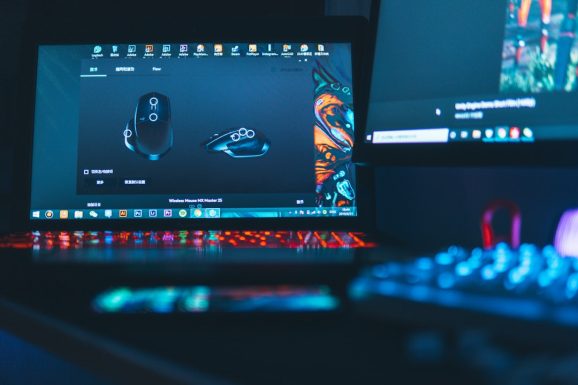
Update the following:
- GPU drivers (NVIDIA, AMD, Intel)
- Mouse drivers (via Device Manager)
- Chipset drivers (from your motherboard manufacturer)
Restart your system after updates to ensure proper driver initialization.
8. Use Launch Options to Force Safe Mode
If the menu is completely unusable, you can attempt a clean startup using launch parameters.
In Steam:
- Right-click Arma Reforger → Properties.
- Add launch options such as:
-windowed-noborder
This forces the game into a simpler display mode, bypassing potential fullscreen UI conflicts.
9. Disable Mods
If you’re running community mods, one of them may be interfering with the interface.
Mods that affect:
- UI layouts
- Input handling
- Custom menus
can unexpectedly break click functionality after updates.
Disable all mods and test the base game first. If it works normally, re-enable mods one at a time to identify the problematic one.
10. When It’s a Server-Side Bug
In rare cases, the issue only appears on specific servers.
This can happen due to:
- Custom server UI scripts
- Plugin conflicts
- Desynchronized input states
If you can click normally in the main menu but not inside a specific server, the problem is likely not your local installation.
Try:
- Reconnecting to the server.
- Joining a different server.
- Reporting the issue to the server admin.
Preventing the Problem in the Future
Once you fix the issue, take protective steps to reduce the chances of recurrence:
- Keep drivers updated regularly.
- Avoid leaving unused controllers plugged in.
- Close overlays when playing.
- Back up your working config files.
- Wait for mod compatibility updates after major patches.
Arma Reforger is still actively evolving, and engine updates sometimes introduce temporary input inconsistencies. Staying methodical with troubleshooting ensures small conflicts don’t escalate into persistent issues.
When to Reinstall the Game
Full reinstallation should be your last resort.
Consider it only if:
- File verification fails repeatedly.
- The issue persists after config reset.
- No input devices work at all.
- The problem survives across multiple display modes.
Before reinstalling, completely delete leftover folders in the Steam directory and Documents folder to prevent corrupted files from carrying over.
Final Thoughts
Being unable to click anything in Arma Reforger feels catastrophic at first, especially when you’re locked out of settings or stuck in menus. However, in most cases, the problem stems from straightforward input conflicts or display mismatches rather than deep system failure.
By methodically checking controllers, fullscreen modes, overlays, file integrity, and configuration files, you can usually resolve the issue in under 30 minutes. The key is to change one variable at a time and test after each step.
If you remain calm and systematic, this is a fixable problem. Arma Reforger’s engine is complex, but it is also stable when configured properly. Once corrected, the issue typically does not return — especially after identifying the original cause.
With the steps above, you should be back in control of your menus and ready to deploy without frustration.



Recent Comments