







TikTok has quickly become the go-to platform for short-form video creators, entertainers, marketers, and influencers. With an ever-growing audience expecting crisp visuals and professional-looking content, uploading high-definition videos to TikTok has never been more important. However, creators frequently encounter issues where their high-quality videos appear blurry, grainy, or pixelated once uploaded. If you’re wondering how to maintain your video quality when sharing content on TikTok, this article will offer a comprehensive guide to help you do exactly that.
TL;DR
All Heading
To upload HD videos on TikTok without losing quality, always shoot in high resolution (preferably 1080p or 4K), edit with the right aspect ratio and export settings, and make sure your TikTok settings allow for HD uploads. Avoid using third-party compression tools or uploading over slow internet connections. Following these best practices can help ensure your final video looks sharp and professional.
Why Does TikTok Reduce Video Quality?
TikTok, like many social media platforms, compresses videos to save bandwidth and improve loading times. Compression minimizes file sizes but often comes at the expense of video clarity. Several factors can affect your video’s final quality on TikTok, including:
- Video resolution and frame rate
- Editing software and export settings
- Internet connection during upload
- App settings and version compatibility
Now let’s look at how to optimize every step of the process to preserve the high definition of your videos.
Step-by-Step Guide to Upload HD Videos on TikTok
1. Shoot in High Definition
Everything starts with your camera. Use a camera or smartphone capable of shooting in at least 1080p resolution or even 4K if available. TikTok currently supports up to 1080p for uploads, so while 4K is great for editing freedom, expect it to be downscaled.
Here are some best practices during filming:
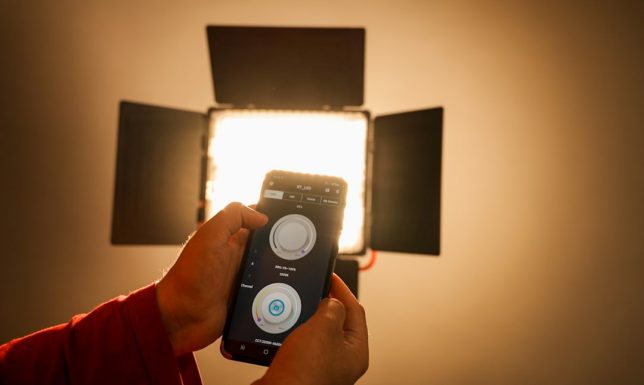
- Use good lighting to reduce noise and shadows in your video.
- Record in a vertical format (9:16 ratio) for compatibility with TikTok’s default layout.
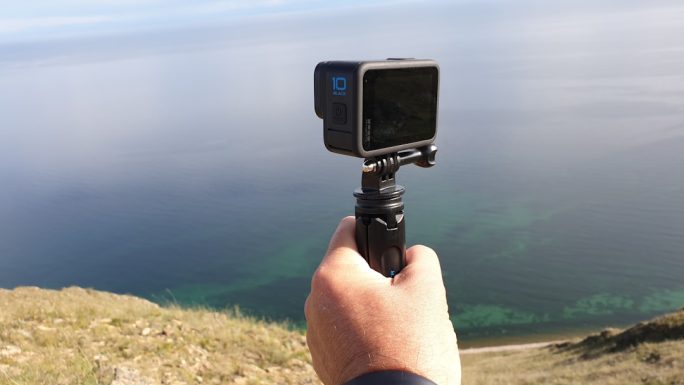
- Maintain a stable camera using tripods or gimbals to avoid blurriness caused by shaking.
2. Edit with TikTok in Mind
Whether you’re editing in Adobe Premiere Pro, Final Cut Pro, CapCut, or any other editor, you’ll want to tailor your export settings specifically for TikTok. Many creators make the mistake of uploading in formats that TikTok can’t process well, leading to quality degradation.
Use these optimal export settings for TikTok:
- Resolution: 1080×1920 (Full HD vertical)
- Frame Rate: 30 fps (maximum TikTok supports as of now)
- Codec: H.264 (MP4 format)
- Bitrate: Between 10,000 and 20,000 kbps for better clarity
If your video is too large in file size, try reducing the bitrate slightly, but keep it above 10,000 kbps to preserve quality. You can also use video compression tools designed specifically for social media that allow manual adjustment of bitrate and resolution.
3. Enable HD Uploads on TikTok
Many users don’t realize that TikTok doesn’t automatically upload videos in HD by default—you have to enable it manually for each upload. Here’s how:
- After recording or uploading your video, proceed to the “Post” screen.
- Tap on “More options” located at the bottom of the screen.
- Toggle on “Upload HD”—this allows for 1080p uploads.
This simple yet crucial step often goes unnoticed, resulting in lower-quality video uploads.
4. Upload Over a Fast, Reliable Internet Connection
Uploading large HD files requires stable internet. A poor Wi-Fi or data connection can contribute to compression artifacts during upload, affecting your video’s final quality. Always use:
- High-speed Wi-Fi rather than cellular data for uploads
- An upload speed of at least 10 Mbps or higher for optimal results
Before uploading, you can check your internet speed using apps like Speedtest to gauge your network’s capability.
5. Avoid Re-Downloading From Other Social Platforms
Some TikTok creators download videos from Instagram or Snapchat to repurpose content. However, these platforms often compress your video, which results in a second round of quality loss when uploaded to TikTok.
Always upload directly from your editing software or your device’s original gallery to avoid cascading compression that further reduces quality.

6. Keep the TikTok App Updated
Outdated app versions can lead to bugs, limited features, and potentially affect the video upload process. Make sure you’re running the latest version of TikTok to benefit from performance updates and better compression algorithms that might improve HD uploads.
Bonus Tips for Sharper Looking TikToks
- Use high-contrast colors: These tend to look better post-compression.
- Avoid excessive filters: Over-editing can leave artifacts when compressed.
- Preview before posting: Always check how your video looks once TikTok has processed it in the preview window.
Common Mistakes That Ruin Video Quality
Let’s recap some things you should avoid if you want to maintain high-quality uploads:
- Not enabling HD upload within TikTok’s settings.
- Uploading videos in the wrong aspect ratio (e.g., horizontal videos).
- Editing videos with low bitrate or outdated export settings.
- Compressing video multiple times through other social platforms.
Conclusion
Uploading HD videos to TikTok without compromising on quality is more about the workflow and less about the equipment. From how you film your content to how you edit, export, and upload, every phase has an impact on your final output. With a bit of attention to detail—like using the correct resolution, editing thoughtfully, enabling HD settings, and using a strong internet connection—you can significantly enhance the visual appeal of your videos.
Don’t let TikTok’s compression algorithms dull your creativity. By following the tips outlined in this guide, you’ll be well on your way to producing sharp, professional-looking videos that stand out on the FYP (For You Page).






Recent Comments