








Ever visit a website and wonder how they made that button glow? Or maybe you’re just curious about what’s behind the scenes of your favorite pages. Well, welcome to the wonderful world of “Inspect Element”—your secret pass into any webpage’s source code. Whether you’re a budding developer or just super nosy (aren’t we all?), this guide is for you!
TL;DR:
All Heading
Want to peek under the hood of a webpage? Use “Inspect Element” on any browser like Chrome, Firefox, Safari, or Edge. Right-click on anything and select “Inspect” to see the HTML, CSS, and more. It’s super handy for learning, debugging, or messing around (responsibly). Just don’t try to change the whole internet…locally doesn’t mean globally!
What is “Inspect Element”?
Inspect Element is a tool built into modern browsers that lets you see what’s going on behind the scenes of a webpage. You can view HTML, CSS, and even tweak stuff in real time! It’s not permanent though—your changes disappear when you reload the page. Still, it’s awesome for learning and testing.
Why Would You Use It?
- Web design practice: Edit styles and instantly see the effect.
- Debugging: Spot missing images, broken layouts, or bad code.
- Learning: Curious about how a site was built? Peek and learn.
- Copy awesome stuff: Totally legal… just don’t claim it’s yours!
How to Open Inspect Element in Different Browsers
1. Google Chrome
- Right-click on anything on the webpage.
- Select Inspect.
- Or press Ctrl+Shift+I (Windows/Linux) or Cmd+Option+I (Mac).
This opens the Developer Tools pane. It usually shows up on the right or bottom of the screen.

2. Mozilla Firefox
- Right-click and select Inspect.
- Or press Ctrl+Shift+I or Cmd+Option+I on Mac.
Firefox has pretty developer-friendly tools. It also includes a cool Layout tab that shows spacing and margin sizes visually.
3. Safari
First, you need to enable the Developer Tools (Apple likes to hide it!).
- Go to Safari > Preferences > Advanced.
- Check the box that says “Show Develop menu in menu bar”.
- Now right-click any element and choose Inspect Element.
4. Microsoft Edge
- Right-click an element on the page.
- Select Inspect.
- Or use the same keyboard shortcut: Ctrl+Shift+I.
Edge is based on Chromium now, so it looks and behaves pretty much like Chrome.
Breaking Down the Interface
Once you open the inspect pane, you’ll notice a few sections:
- Elements Tab: Shows all the HTML of the webpage.
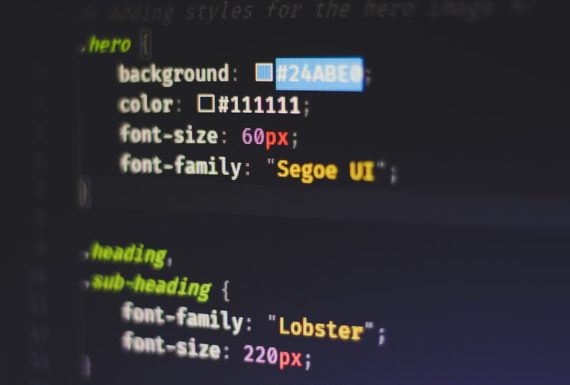
- Styles Panel: Displays the CSS rules applied to the selected element.
- Console: A place to run JavaScript code. (Geek level 100!)
- Network: See how resources (images, CSS files, etc.) load.
How to Use Inspect Element
1. Inspect and Edit HTML
- Right-click anything on the page.
- Choose Inspect.
- You’ll see the HTML code related to that element.
- Double-click attributes or content to edit.
Try changing a title or image source. It updates immediately but it’s temporary!
2. Play with CSS
- In the side panel, you’ll see all CSS rules applied to your selected element.
- Click and edit colors, padding, fonts—see the magic live update!
- Uncheck CSS rules to see what they do.
Tip: Try adding background-color: pink; if you’re feeling fancy.
3. Use the Select Tool
You don’t need to scroll through lines of HTML to find something. Use the select tool!
- Click the pointer icon in the top-left of the inspect pane.
- Now move your mouse over the webpage.
- Click any element and it’ll highlight in the code panel.
Pro Tip: Mobile View Testing
Want to see how a site looks on an iPhone or tablet?
- In Chrome or Edge, press Ctrl+Shift+M after opening DevTools.
- This toggles the device toolbar.
- You can pick from different screen sizes and even rotate!
What Can’t You Do?
- You can’t make changes permanent unless you edit the actual website files.
- You can’t use it for hacking. Yes, you can see form values or change text locally, but it’s all temporary.
- You can’t inspect some apps that block right-click or use complex rendering (but there are workarounds!).
Making It Even More Fun
Try this:
- Go to any site with a big headline.
- Use Inspect Element and change the headline!
- Take a screenshot and prank your friends! (Don’t be evil though.)
Or challenge yourself to recreate a button from your favorite website using only HTML and CSS. You’ll learn a lot!
Conclusion
Inspect Element is like having X-ray vision for the web. Anyone can use it, and it’s totally free. Whether you’re a student, a designer, a marketer, or just super curious, it’s a fantastic tool to explore the web in a whole new way.
So next time you see a cool animation or layout, right-click it and dig into that code like a digital archaeologist. Who knows what treasures you’ll find?






Recent Comments