







Instagram remains one of the most popular social platforms in 2026, but sharing photos, stories, and reels can reveal more about you than you realize. Location data embedded in posts, stories, messages, and even your device metadata can expose your home, workplace, travel patterns, and daily routines. Whether you are concerned about stalking, online harassment, data brokers, or simply value your privacy, learning how to properly hide your location on Instagram is essential.
TLDR: Instagram can reveal your location through geotags, story stickers, device permissions, metadata, and IP address tracking. To stay private in 2026, remove location access from your phone, avoid real-time tagging, disable precise location, strip photo metadata, and consider using a secure VPN. Review your Instagram privacy settings regularly and avoid posting live from sensitive locations. Small adjustments significantly reduce your digital footprint.
Why Hiding Your Location on Instagram Matters
All Heading
Many users assume that simply avoiding geotagging a post is enough. Unfortunately, that is no longer true. Instagram can determine your general location through:
- Device GPS permissions
- IP address tracking
- Photo metadata (EXIF data)
- Location stickers in Stories
- Tagged locations in posts and reels
- Check-ins and collaborative posts
Even if you do not consciously share your location, your device might be doing it for you. In 2026, data harvesting has become more sophisticated, making proactive privacy management essential.
Step 1: Turn Off Location Access for Instagram (iPhone & Android)
The most important step is disabling location permissions at the operating system level.
On iPhone (iOS 18+):
- Open Settings.
- Tap Privacy & Security.
- Select Location Services.
- Scroll to Instagram.
- Select Never.
- Turn off Precise Location.
On Android (Android 15+):
- Open Settings.
- Tap Location.
- Select App Location Permissions.
- Tap Instagram.
- Select Don’t Allow.
Why this matters: Even if you do not tag a location, granting “Always” or “While Using” access allows Instagram to associate your activity with specific geographic patterns.
Image not found in postmetaStep 2: Avoid Real-Time Location Tags and Story Stickers
Instagram’s Location Sticker in Stories is one of the biggest privacy risks. Posting from a café, gym, office, or your home neighborhood in real time tells viewers exactly where you are at that moment.
Safer alternatives include:
- Posting locations after you leave
- Tagging a broader area (e.g., city instead of venue)
- Avoiding recurring patterns (like always tagging the same gym)
Important: If your account is public, anyone can track patterns. Even private accounts are vulnerable through screenshots and shared posts.
Step 3: Remove Location Data From Photos Before Uploading
Photos taken on modern smartphones include EXIF metadata, which may contain GPS coordinates, timestamps, and device details.
Instagram typically strips most metadata upon upload. However, this is not guaranteed across all formats, particularly when sharing externally or storing backups.
How to remove metadata:
On iPhone:
- Open Photos.
- Select an image.
- Tap the Info (i) icon.
- Tap Remove Location.
On Android:
- Open Gallery.
- Select photo.
- Tap Edit or Details.
- Remove location data.
You can also disable camera geotagging entirely inside your device’s camera settings.
Step 4: Adjust Instagram Privacy Settings
Instagram provides built-in privacy controls that reduce exposure.
Go to: Settings & Privacy → Account Privacy
Then:
- Switch to a Private Account
- Restrict who can tag you in posts
- Approve tags manually
- Limit story viewers
- Disable activity status
In 2026, Instagram also includes a “Sensitive Location Alert” option in some regions, warning users when posting repeatedly from the same address. Enable it if available.

Step 5: Hide Your IP Address With a VPN
Even if GPS access is disabled, Instagram still sees your IP address, which reveals your general city and region.
A reputable VPN (Virtual Private Network) masks your IP address and replaces it with one from another region.
VPN vs No VPN Comparison
| Feature | Without VPN | With VPN |
|---|---|---|
| IP Address Visibility | Shows real location | Shows masked location |
| City-Level Tracking | Possible | Reduced |
| Public WiFi Protection | Low | High |
| Extra Encryption | No | Yes |
Important: A VPN does not hide GPS data. It only masks IP-based tracking. For full protection, combine VPN usage with disabled location services.
Step 6: Stop Instagram From Tracking Your Precise Location (Advanced)
In 2026, smartphones distinguish between Precise Location and Approximate Location.
If you must allow access (for business tagging, for example), switch to:
- While Using the App
- Precise Location: OFF
This limits accuracy to a broader geographic range instead of exact coordinates.
Step 7: Be Careful With Background Clues
Even without technical tracking, visual clues in your content can reveal where you are.
Common mistakes include showing:
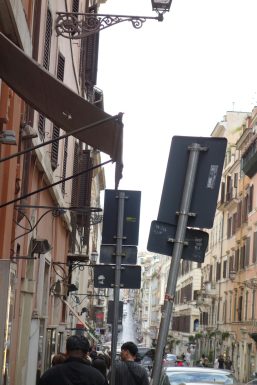
- Street signs
- House numbers
- School logos
- Landmarks visible from your window
- License plates
Before posting, ask yourself: Could someone identify this location using Google Street View?
Step 8: Delay Travel Posts
One of the safest strategies is simple: post after you leave.
Sharing vacation photos in real time informs strangers that:
- You are not home
- Your property may be unattended
- You are in a specific, traceable place
Delaying travel posts by even 24–48 hours dramatically reduces physical security risks.
Step 9: Review Tagged Posts
Friends can accidentally expose your location by tagging you at events, restaurants, or private homes.
To manage this:
- Go to Settings & Privacy.
- Select Tags and Mentions.
- Enable Manually Approve Tags.
Regularly review the Tagged section on your profile and remove posts that reveal sensitive information.
Common Myths About Instagram Location Privacy
Myth 1: “Private account means full privacy.”
Reality: Followers can screenshot, forward, or copy information.
Myth 2: “If I don’t add a location sticker, I’m safe.”
Reality: IP addresses and metadata can still reveal general location.
Myth 3: “Turning off WiFi hides me completely.”
Reality: Cellular data still exposes your carrier-based location.
Best Privacy Configuration Checklist (2026)
- Location access set to Never
- Precise location Off
- Account set to Private
- Manual tag approval enabled
- No real-time location stickers
- Camera geotagging disabled
- VPN enabled on public networks
- Travel posts delayed
Final Thoughts
Location privacy on Instagram in 2026 requires more than flipping a single switch. It demands awareness of how apps, devices, metadata, and networks interact to create a detailed picture of your movements.
The most effective strategy is layered protection: disable app permissions, avoid real-time tagging, remove metadata, adjust in-app privacy controls, and mask your IP with a VPN when necessary.
Instagram can be an enjoyable and powerful platform for connection and creativity. But your physical safety and personal privacy should always come first. By following this step-by-step guide, you significantly reduce the risk of unwanted tracking, profiling, and exposure — while continuing to use the platform on your own terms.





Recent Comments