





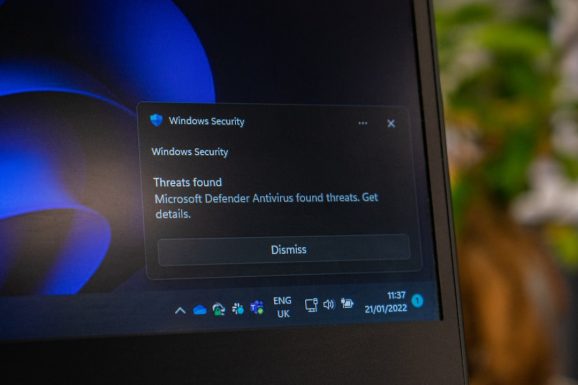
First, pause the update, restart once, then repair Windows Update before trying KB5065426 again. Error KB5065426 usually means the monthly patch failed during download, install, restart, or rollback. Microsoft recommends starting with the Windows Update troubleshooter and checking repair steps before repeating the same install loop [source: Microsoft].
TLDR: If Windows 11 update KB5065426 fails, do not keep clicking Retry. Restart, free at least 10 GB of space, run the troubleshooter, then repair system files with DISM and SFC. For example, if a laptop rolls back at 30% after every reboot, clearing the update cache and installing the patch manually often fixes it. Expect the full repair process to take 25 to 60 minutes, depending on drive speed and damage.
1. Pause the update and reboot cleanly
All Heading
Open Settings > Windows Update and click Pause for 1 week. Then restart the PC. This stops Windows from hammering the same broken patch files again.
After the restart, turn off third-party antivirus tools for a short time if your workplace policy allows it. Also unplug extra USB drives, docks, printers, and SD cards. Monthly patches can fail because a driver stalls during restart. It drives me crazy that one old printer driver can waste half an hour, but it happens.

2. Confirm the error and check free space
Go to Settings > Windows Update > Update history. Find KB5065426 and write down the exact error code. Common codes include 0x800f0922, 0x80070002, and 0x80248007.
Next, check storage:
- Open Settings > System > Storage.
- Keep at least 10 GB free on the system drive.
- Empty Temporary files, especially old update files.
- Do not delete personal files unless you have a backup.
If the device has very low storage, Windows may download the patch, start the install, then fail during staging. That creates a messy loop.
3. Run the Windows Update troubleshooter
Open Settings > System > Troubleshoot > Other troubleshooters. Run Windows Update. Let it finish, even if it sits on one step for several minutes.
When it reports fixes, restart the PC. Then go back to Windows Update and try KB5065426 once. Only once. If it fails again, move to file repair.
4. Repair Windows system files
Right-click the Start button and choose Terminal Admin. Run these commands one at a time:
DISM /Online /Cleanup-Image /RestoreHealthsfc /scannowDISM repairs the Windows image. SFC checks protected system files. If SFC says it found and repaired files, restart before trying the update again.
If DISM stalls at 62.3%, wait. That pause is common. On slower machines, it can sit there for 10 minutes or more. Annoying, yes. Usually not broken.
5. Reset the Windows Update cache
If KB5065426 still fails, reset the update download folders. This forces Windows to fetch clean copies.
Open Terminal Admin and run:
net stop wuauserv
net stop bits
net stop cryptsvc
ren C:\Windows\SoftwareDistribution SoftwareDistribution.old
ren C:\Windows\System32\catroot2 catroot2.old
net start cryptsvc
net start bits
net start wuauserv
Restart the computer. Then return to Settings > Windows Update and check for updates again.
This does not remove your documents. It removes cached update data. Windows rebuilds those folders on the next scan.
6. Install KB5065426 manually
If automatic update still fails, download the standalone package from the Microsoft Update Catalog. Search for KB5065426, then choose the file that matches your system type, usually x64 for most modern PCs [source: Microsoft Update Catalog].
Before installing, check this:
- Open Settings > System > About.
- Confirm whether your PC is x64 or ARM64.
- Download only the matching package.
- Close all apps before running the installer.
If the manual installer says the update is not applicable, the PC may already have a newer cumulative update. It may also be on the wrong Windows 11 version.
7. Recover if the patch broke the PC
If Windows starts but acts wrong after KB5065426, uninstall the patch.
- Open Settings > Windows Update > Update history.
- Click Uninstall updates.
- Select KB5065426.
- Click Uninstall, then restart.
If Windows will not boot, force the recovery screen. Start the PC, then hold the power button when the Windows logo appears. Repeat this three times. Windows should open Automatic Repair.
Choose Advanced options > Troubleshoot > Advanced options > Uninstall Updates. Pick Uninstall latest quality update. A monthly patch is a quality update, not a feature update.

8. Stop the failed patch from looping
After recovery, pause updates for a few days. Give Microsoft, your PC maker, or your IT team time to fix driver conflicts. Do not pause forever. Security fixes still matter.
Also update these items before trying again:
- BIOS or UEFI from the PC maker.
- Chipset drivers.
- Storage drivers, especially on business laptops.
- VPN and endpoint security clients.
Monthly patches fail more often on machines with old drivers, nearly full disks, broken system files, or aggressive security software. The fix is usually not one magic button. Start with the simple checks, then repair files, reset the cache, and install manually if needed. If KB5065426 still fails after all of that, collect the error code and update history screenshot before contacting support. That saves time and avoids another useless “try rebooting” reply.



Recent Comments