







Your mouse is one of the most essential tools for navigating your Windows computer, whether you’re using it for work, gaming, or casual browsing. One important but often overlooked feature is the mouse’s DPI (dots per inch). DPI measures the sensitivity of the mouse—the higher the DPI, the more distance the cursor travels with minimal physical movement. Knowing how to check your mouse’s DPI can help tailor performance for precision tasks or optimize gaming response.
TLDR
All Heading
Checking your mouse DPI in Windows can help improve accuracy and customization for different tasks such as gaming, design, or productivity. If your mouse has dedicated software, this is the easiest way to see and adjust DPI. Otherwise, try using online tools or test your DPI manually with basic math. Investing a few minutes to check and tweak your DPI settings can significantly enhance your computing experience.
What Is DPI and Why Does It Matter?
The term DPI (dots per inch) refers to how sensitively a mouse responds to movement. A mouse set at 800 DPI moves the cursor less than one set at 1600 DPI when both are moved the same physical distance. DPI is particularly important in scenarios like:
- Gaming: Lower DPI might aid in accurate aiming, while higher DPI can assist in fast movements.
- Graphic design: High DPI allows for finer detail in touch-up tasks.
- General use: A balanced DPI provides a good trade-off between speed and control.
If your mouse feels sluggish or overly sensitive, knowing your DPI settings can help you recalibrate for a better experience.
Method 1: Check the Manufacturer’s Software
If you’re using a branded or gaming mouse like those from Logitech, Razer, Corsair, or SteelSeries, the easiest and most accurate way to check your DPI is through the manufacturer’s software.
Steps:
- Identify your mouse model – Usually printed under the mouse.
- Download the official software: Examples include Logitech G HUB, Razer Synapse, or Corsair iCUE.
- Install and open the software.
- Navigate to the DPI or sensitivity settings. Your current DPI values and profiles should be displayed.
These tools often allow you to:
- Set custom DPI levels
- Switch DPI with a button click
- Create profiles for different software and games
This method is the most reliable because it reads the settings directly from the mouse’s onboard memory or sensors via the software interface.
Method 2: Use Windows Settings (For Basic Info)
While Windows itself doesn’t show exact DPI values, you can get a rough sense of mouse sensitivity settings through the Control Panel. This won’t show specific DPI values, but it helps to adjust pointer speed if needed.
Steps:
- Press Windows + R, type control and press Enter.
- Go to Hardware and Sound > Devices and Printers.
- Right-click on your mouse and select Mouse settings.
- In the Pointer Options tab, adjust the Pointer speed slider.
This method doesn’t provide a numeric DPI but allows you to adjust mouse behavior. Keep in mind this changes sensitivity at the software level and not the actual hardware DPI.
Method 3: Look for DPI Switch Button on Your Mouse
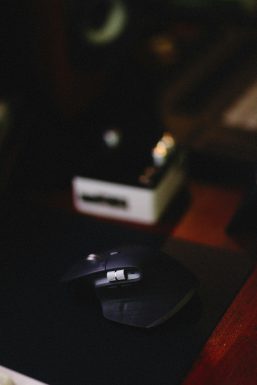
Many modern gaming mice and even some productivity mice come with a built-in DPI switch. This is usually a button located on the top or bottom of the mouse that cycles through predefined DPI levels.
To find out DPI values:
- Press the DPI button and watch for on-screen indications (some software displays the change).
- Check the user manual or specifications sheet—manufacturers often list the DPI values tied to each preset.
If you’re unsure what the DPI button looks like, it’s typically denoted by a small crosshair icon or labeled directly as DPI.
Method 4: Measure DPI Manually (No Software Required)
If you have a basic mouse that doesn’t come with manufacturer software or a DPI toggle button, you can estimate the DPI using a ruler and a website like Mouse Sensitivity or DPI Analyzer.
Steps to estimate DPI:
- Place a ruler or measuring tape on your desk.
- Open a DPI analyzer tool in your browser.
- Set the target distance (e.g., 2 inches or 5 cm).
- Move your mouse exactly that distance physically while holding a steady line on the tool.
- The tool will estimate your DPI based on the cursor movement registered.
Keep in mind there may be slight inaccuracies, but this gives a decent ballpark figure, especially for users who don’t have access to advanced tools or shipping-label manuals.
Tips for Adjusting DPI to Suit Your Needs
Once you know your DPI settings, tailoring it to match your habits can boost productivity and comfort. Here are some quick tips:
- For productivity: A medium DPI setting (800–1600) usually offers a good balance.
- For precision tasks like graphic design: 600–800 DPI is typically ideal for better cursor control.
- For gaming: Try lower DPI (400–800) for first-person shooters (FPS), and higher DPI (1200–2000+) for real-time strategy (RTS) or MOBA games.
Also, be aware of your screen resolution. A 1600 DPI setting appears much faster on a 1080p monitor than on a 4K screen, requiring less physical movement to move the cursor across the screen.
Conclusion
Checking your mouse DPI isn’t just for enthusiasts or competitive gamers—it’s a valuable metric for anyone wanting better control and comfort while using their computer. Whether you use manufacturer software, DPI switches, or manual estimation, knowing your DPI can help optimize the way you interact with your digital environment.
Take a few minutes to explore your mouse settings today—you might be surprised how much of a difference it makes in your daily computing workflow.


![How to Use CHKDSK /F /R /X to Repair Hard Drive Errors [Win 10/11]](https://tipsmafia.org/wp-content/uploads/2025/08/a-group-of-men-in-uniform-marching-down-a-street-command-prompt-administrator-diskpart-540x385.jpg "How to Use CHKDSK /F /R /X to Repair Hard Drive Errors [Win 10/11]")


Recent Comments