







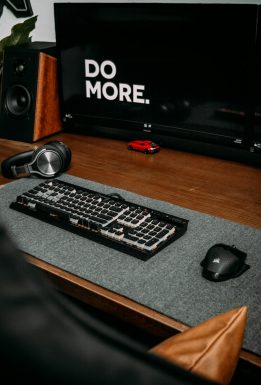
Love sprucing up your space? Changing your keyboard color can be a super fun way to personalize your PC setup. Whether you’re a gamer, student, or just a vibe enthusiast, giving your keyboard a splash of color adds flair. Best of all? It’s easier than you think.
TL;DR (Too Long; Didn’t Read)
All Heading
You can change your keyboard color using built-in software or by downloading custom tools. Many laptops and gaming PCs come with RGB keyboards that let you tweak lighting effects and colors. Look for software like SteelSeries Engine, Razer Synapse, or Alienware Command Center. If your keyboard doesn’t support RGB lighting, sadly, it can’t be changed unless you upgrade the hardware.
Step 1: Check if Your Keyboard Supports RGB
First things first—does your keyboard even support color changes?
- Laptop users: Some models like Alienware, MSI, ASUS ROG, and HP Omen have RGB backlit keyboards.
- Desktop users: Your mechanical or gaming keyboard might support it too. Brands like Razer, Corsair, Logitech, and SteelSeries are pros at this.
To check:
- Look at the keyboard keys. Do they turn different colors?
- Check for an RGB or lightbulb-looking icon on your function keys (like F3 or F4).
- Google your keyboard model + “RGB” to learn more.
If you see only one light setting (like just white or red)? You probably have a single-color backlight, not RGB. Bummer—but hey, there are still ways to cozy it up. Keep reading!
Step 2: Find the Software
If you’ve got an RGB-enabled keyboard, it’s time to find the software you’ll use to change the lighting. Here are a few big names:
- Razer: Use Razer Synapse
- SteelSeries: Use SteelSeries Engine
- Corsair: Use Corsair iCUE
- Logitech: Use Logitech G HUB
- Alienware: Use Alienware Command Center
- MSI or ASUS: It depends, but try Dragon Center or Armoury Crate
If you’re not sure what brand your keyboard is or what software works for it, use your PC’s Device Manager to find the hardware name. From there, you’re just a Google search away from the right software.
[h2][b]Step 3: Install and Open the Software[/b][/h2]
Found your match? Great! Now install the lighting software and launch it.
Once it opens, you’ll usually see an image of your keyboard or device. From here, you can:
- Select preset lighting effects like Wave, Ripple, or Reactive
- Pick one color or mix multiple shades
- Match the keyboard lights to your music or game
- Adjust brightness and speed
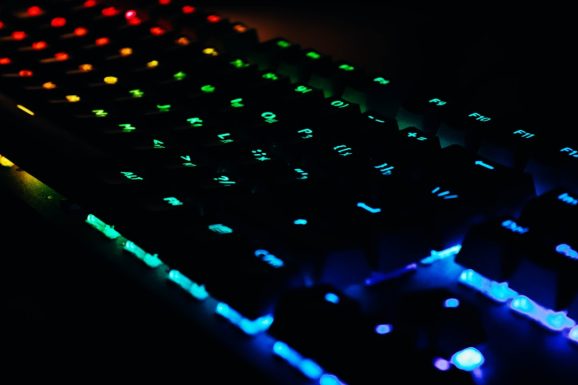
Don’t be shy—explore buttons and sliders. Most apps are very visual and easy to use. Customization can be extremely satisfying!
Step 4: Save Your Settings
Play around until your keyboard is a glowing rainbow of joy—or a calming ocean blue. Once you’re happy, save your settings.
This step is important. Otherwise, the keyboard might reset when you turn off your PC.
Look for a “Save” or “Apply” button in the software. Some apps might also let you create different profiles for different moods or games.
Pro tip: Give your profiles fun names like Study Zen, Midnight Mode, or Boss Battle FTW.
Step 5: Use Function Keys (Quick Access)
Want to change keyboard colors without opening the software every time? Many laptops and keyboards offer quick shortcuts.
Try these function key combos:
- Fn + F4 (or similar) to cycle through colors
- Fn + Arrow Keys to adjust brightness
- Fn + Spacebar to toggle modes
These shortcuts vary by device. Look for tiny icons on your function keys for clues.

Still not working? You might need to enable it in the software first.
What If My Keyboard Doesn’t Support RGB?
Okay, so maybe your keyboard doesn’t have fancy lights. Don’t worry—you’ve got options!
- Replace the keyboard with an RGB one. You can find great options under $50.
- USB-powered RGB pads that slide under your keyboard are available.
- Use LED strips for desk lighting to glow up your space.
You’ll still get that colorful atmosphere—even if the keys themselves aren’t lit.
Tips & Tricks for Next-Level Lighting
- Sync lighting with other RGB devices like your mouse, monitor, or speakers.
- Dim the lights in your room and let the keyboard glow set the mood.
- Use “Reactive Mode” so keys light up when you press them. Super cool!
- Create a fade from left to right for typing effects.
- Match colors with your favorite game!
Get wild—or keep it chill. The lights are your canvas.
Troubleshooting: Why Won’t My Colors Change?
If you’re hitting a wall, try these:
- Update your drivers: Old keyboard firmware can mess things up.
- Run the software as admin: Right-click the program icon and choose “Run as administrator.”
- Check Windows settings: Go to “Settings” > “Devices” > “Typing” to see related options.
- Reboot your computer: It always helps.
Still no luck? Unfortunately, if your keyboard isn’t RGB-supported, lighting changes just aren’t possible. Time to consider an upgrade!
Conclusion: Let There Be (Colorful) Light!
Customizing your keyboard backlight is one of the easiest—and most fun—ways to make your PC stand out. Whether you’re on a laptop or a high-end gaming rig, a little color goes a long way.
Don’t be afraid to download the lighting software and poke around. You’ll quickly become a color wizard. Remember—it’s your keyboard. So make it shine like your personality!
Happy glowing!





Recent Comments