








Restoring web pages from a backup file is a crucial skill for any website owner, developer, or IT professional, especially when facing data loss, a hacked site, or accidental content deletion. Website data is often vulnerable to a variety of potential threats, but properly maintained backups can be a lifesaver when disaster strikes. Knowing how to safely and efficiently restore a site prevents long downtimes and ensures business continuity.
TLDR: Summary
All Heading
If your website goes offline or content is lost, having a backup file allows you to restore your web pages quickly. Depending on your backup format (ZIP files, database dumps, or CMS-specific backups), the restoration process varies but typically involves uploading files back to the hosting server and reimporting databases. Tools like cPanel, FTP clients, or CMS plugins (like WordPress UpdraftPlus) can simplify the process. Always test the restored version in a staging environment before going live.
Understanding the Types of Website Backups
Before diving into the steps for restoring a website, it’s important to understand the different types of backup files commonly used:
- Full Backup: Includes all website files, databases, configuration files, themes, and plugins.
- Incremental or Differential Backup: Only includes files changed or added since the last backup, making it lighter and faster to restore.
- Database Backup: Contains only the website’s database (usually MySQL), often exported as a .sql file.
- CMS-Specific Backup: Tools like WordPress, Joomla, or Drupal offer plugins/extensions for backups that package files and databases together.
Preparing for Restoration
Restoring a backup is a technical process that must be planned. Here’s what someone needs to do before beginning:
- Have Access to Hosting Panel: Most commonly cPanel or similar alternatives like Plesk.
- Obtain FTP Credentials: For using FTP clients like FileZilla to upload files.
- Backup the Current State: Even if it’s broken, it’s wise to make a new backup before restoration in case of errors during the process.
- Staging Environment: If available, test the restoration process on a staging copy of the site before applying changes to the live version.

Step-by-Step Guide to Restore Web Pages from a Backup
1. Upload Website Files via FTP or Hosting Panel
Many websites use static files and folders (like HTML, CSS, JS) along with server-side scripts (PHP, Python, etc.). These are usually stored in the public_html or www directory. To restore them:
- Extract the backup file on your local machine if it’s compressed (e.g., .zip or .tar.gz).
- Use an FTP tool (e.g., FileZilla) or your hosting panel’s file manager to upload the extracted files to the appropriate directory.
- Confirm file permissions are consistent with the original setup. For example, PHP files typically have 644 permissions.
2. Restore the Database (If Applicable)
Dynamically generated websites rely heavily on databases. To restore a MySQL or MariaDB database:
- Access phpMyAdmin or another database management tool via your hosting control panel.
- Delete the existing tables if partial content exists to avoid conflict. Alternatively, create a new database.
- Click on the Import tab and upload the .sql file from your backup.
- Update your website’s configuration file (such as wp-config.php or config.php) to match the database name, user, and password.
3. Verify URL Settings
Upon restoring the database, particularly on WordPress or Joomla sites, the URL settings may revert to values they had when the backup was made. Update these to match your current hosting environment if changes have occurred.
- Log in to your site’s dashboard (if available).
- Navigate to Settings > General (WordPress) or Configuration > Site (Joomla) and update the Site URL.
4. Check for Broken Links and Media
Media files, such as images or video content, may sometimes fail to restore properly if paths are changed. Tools such as Broken Link Checker or browser developer tools can help locate missing files and links. Re-upload any missing assets if necessary.
Using CMS-Specific Tools
Popular content management systems like WordPress provide plugins to simplify the backup and restoration process:
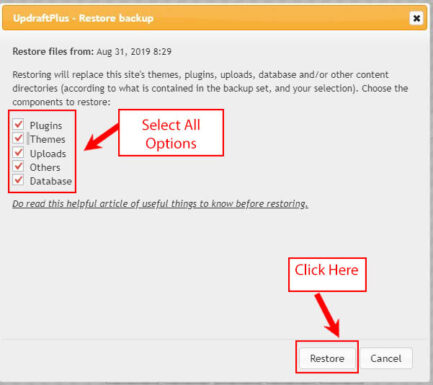
- UpdraftPlus: Allows you to restore both files and databases within the dashboard interface.
- Duplicator: Provides a migration wizard that also supports restoration.
- Akeeba Backup (Joomla): Offers a full restoration wizard with pre-requisites checks.
After the Restoration: Testing and Verification
Once the restoration is complete, it’s critical to carry out several tests to ensure everything functions as expected:
- Test Navigation: Browse through your site pages to verify links, layout, and content integrity.
- Check Forms and Interactivity: Contact forms, shopping carts, and dynamic elements should work smoothly.
- Use Developer Tools: Inspect the browser console for any JavaScript or loading errors.
- Audit SEO & Redirects: Use SEO tools like Screaming Frog to check for broken redirects or missing meta tags.
Best Practices to Avoid Future Issues
Prevention is vital when it comes to website data. Here are some best practices to adopt:
- Automate Backups: Set your CMS or hosting provider to create daily or weekly backups securely stored offsite.
- Regularly Test Restorations: Don’t wait for disaster. Test your backup files by restoring them in a sandboxed environment.
- Monitor Site Activity: Use security plugins or services to detect suspicious changes quickly.
- Document Configuration Settings: Keep records of database names, users, paths, and plugin lists.
Frequently Asked Questions (FAQ)
-
Q: Can I restore a website without a control panel access like cPanel?
A: Yes, you can use FTP clients to upload files and connect to the database through command-line tools or remote phpMyAdmin if configured. -
Q: Will restoring a backup erase current content?
A: Generally, yes. Restoring from a full backup will overwrite existing files and data, so always make a copy of the current site beforehand. -
Q: How long does it take to restore a site?
A: It depends on the website size and hosting speed, but a typical restoration process can take from 10 minutes to a couple of hours. -
Q: My backup file has only .sql but no website files. What should I do?
A: You likely have only the database portion. You will need your web files (HTML, PHP, media) separately to fully restore your site. -
Q: Are CMS backup plugins safe to use?
A: Most popular plugins from reputable sources are safe. Always read reviews and ensure they’re kept updated to avoid vulnerabilities.
Restoring a website from a backup file might seem intimidating at first, but with careful planning, proper tools, and clear steps, it becomes a manageable and necessary part of maintaining a healthy web presence.






Recent Comments