






Many designers have encountered this frustrating scenario: a logo that looks pristine and bold on screen is suddenly muted, discolored, or blurry when printed. It’s a common but avoidable pitfall in the world of digital-to-print transitions. Understanding why your logo looked great on screen but failed in print—and how proofing and ICC profile adjustments can correct this—is essential for creating consistently high-quality branding across all media.
TL;DR
All Heading
Logos that appear perfect on screen can look drastically different in print due to differences in color profiles, resolution, and print-specific design nuances. ICC profile mismatches, RGB vs. CMYK issues, and poor proofing processes often cause faded or inaccurate colors. Implementing proper soft-proofing and converting to appropriate print ICC profiles can significantly improve printed output. With the right workflow, you can ensure your logo looks just as good in ink as on screen.
Why Logos Look Different in Print
There are several factors that cause discrepancies between what you see on your monitor and what appears on printed materials. These include:
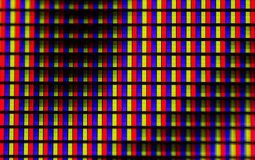
- Color spaces: Monitors use RGB (Red, Green, Blue) while printing systems typically use CMYK (Cyan, Magenta, Yellow, Black). The conversion between these two can shift colors.
- ICC profiles: These profiles describe how colors should appear on different devices. If your display and printer aren’t “speaking the same language,” discrepancies arise.
- Screen brightness: Many monitors are much brighter than printed materials, making designs appear more vibrant than they actually are.
- Resolution: A logo at 72 DPI (dots per inch) can look crystal-clear on screen but will pixelate when printed at standard 300 DPI.
Let’s explore a real-world workflow that saved one logo from ending up in the ‘design disaster’ folder.
Case Study: The Color Shift Catastrophe
A branding agency created a sleek, modern logo for a boutique coffee company. On their calibrated design monitors, the logo’s soft browns, gold highlights, and textured gradients looked deluxe and perfectly tone-balanced. Their client loved it. But disaster struck when they received their first shipment of printed packaging: the gold was a dull yellow; the browns came out nearly black; and the gradients were blotchy at best.

The issue? The agency had designed the logo in an RGB color space without converting it appropriately for print. Additionally, they hadn’t used any soft-proofing or ICC profiles to simulate the print output. The result was a harsh lesson in the differences between screen and print rendering.
Steps Taken to Fix It
After the initial misprint, the agency collaborated directly with the printer’s pre-press department and took the following steps:
1. Embed the Correct ICC Profile
They converted the logo file to a CMYK color profile using Adobe’s U.S. Web Coated (SWOP) v2 ICC profile, which is commonly used for offset printing on coated stock. This profile helped simulate what the inks would look like on paper, reducing unexpected color shifts.
2. Implement Soft-Proofing
Soft-proofing involves previewing how your design will look when printed by applying a printer’s ICC profile inside your design software. Both Photoshop and Illustrator support this under View > Proof Setup > Custom. By activating this mode, the team could immediately see that the gold would not reproduce faithfully in CMYK and needed to be adjusted from a bright, saturated RGB hue to a more realistic metallic blend suited for 4-color print.
3. Correct Color Swatches Manually
The designers edited the logo colors to use CMYK-safe values and printed swatch sheets to find the closest match. For metallic gold, they chose a combination of yellow (0, 19, 70, 20) that rendered more vibrantly without veering too warm or dark.
4. Test with Hard Proofs
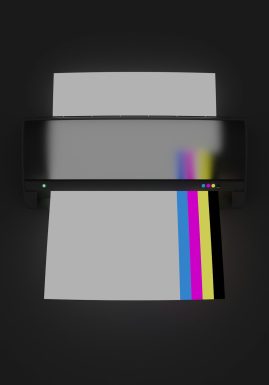
Before reprinting the entire batch, the agency printed several test sheets using the commercial printer’s actual stock and inks. These hard proofs allowed them to assess how the new ICC profile and color corrections fared in the real world. Making these revisions upfront saved thousands in reprints.
The Role of ICC Profiles in Print Design
ICC (International Color Consortium) profiles are essential in helping different devices—monitors, printers, scanners—interpret colors the same way. Applying an ICC profile to your print design accomplishes several goals:
- Color accuracy: Ensures colors appear as close as possible to how they will look in the final print.
- Consistency: Prevents your greens from turning brown or reds from looking too pink when switching devices or mediums.
- Predictive rendering: Lets you simulate how paper absorbency, dot gain, and ink saturation will impact visual output.
You’ll need to ask your printer for their preferred ICC profile, which varies depending on the printing press, ink type, and paper stock they use. Popular ICC profiles include:
- US Web Coated (SWOP) v2 – for standard coated stock offset printing in North America
- Coated FOGRA39 – often used in Europe for offset and coated stock
- Gracol 2006 – adapted for high-end commercial presses
Key Lessons and Takeaways
Whether you’re printing business cards, packaging, or billboard-sized banners, the right tools and processes make all the difference. Here are key takeaways for fault-proof logo printing:
Do:
- Design in CMYK when final output is for print, or convert your RGB designs with care.
- Use proofing tools to simulate actual print output inside your design software.
- Communicate with your printer early and often—ask for printable ICC profiles and paper samples before finalizing designs.
- Review hard proofs to spot issues in real prints, not just on screen.
Don’t:
- Assume what you see on screen is final—monitors are misleadingly bright and vibrant.
- Ignore resolution—72 DPI may suffice for web, but 300 DPI is standard for quality print.
- Use fluorescent neon or pure RGB colors—these won’t convert gracefully in CMYK space.
A Transformative Impact
After correcting their process, the branding agency reported not only better print results but also increased efficiency and client trust—they could now show clients an accurate print preview during approval stages. More importantly, their coffee client was thrilled with the new print run.
When the corrected packaging hit the shelves, the logo popped with eye-catching hues and crisp lines, perfectly representing the brand’s upscale vision. Consumers noticed. Sales followed.
Final Thoughts
In the world of design, flashy PDFs and vibrant mockups are just half the story. The true test of visual communication is tangible impact—how your logo performs in print, signage, merchandise, or packaging.
By understanding the science behind color and proofing, and by leveraging ICC profiles effectively, you transform design from digital art to compelling, real-world expression. So the next time you’re about to send a print file to production, pause for a moment, switch on soft-proofing, double-check your profiles, and print a test.
Your logo—and your reputation—will thank you.






Recent Comments